Final Cut Pro | Keyboard Shortcuts | Introduction

If you are not using keyboard shortcuts in your editing workflow, you should be. Shortcuts are one of the easiest ways to speed up your work in Final Cut Pro. This lesson introduces a series of quick videos on some of the most useful shortcuts, and shows you the command editor, where you can see and change them.
Steps
- Watch the series. Each of the following videos demonstrates one popular keyboard shortcut and how it is used inside Final Cut Pro.
- Open the command editor from the Final Cut Pro menu. Choose Commands, then Customize. The shortcut is Option-Command-K.
- Look at the keyboard shown at the top. It displays the keys and which ones are assigned to commands.
- Browse the list of commands on the bottom left, or search for a command by name. Click a command to see its shortcut.
- To change a shortcut, select the command and press the new key combination. If the combination is already used for something else, Final Cut lets you know.
- Close the command editor and try the shortcut in your project.
Tips
- Start with a handful. J, K and L for playback, I and O for in and out points, and the spacebar for play and pause cover a lot of your day.
- Learn shortcuts by the menu. When you open a menu, the shortcut is listed next to the command, so every time you reach for the mouse, you can learn the key instead.
- Hover over a toolbar button and the tooltip shows its shortcut as well.
- If a shortcut does not work the way you expect, check whether the timeline or the browser is the active area, since some shortcuts depend on where you are working.
- Customizing is powerful, but do it slowly. If you work on several Macs, keep the defaults so that your muscle memory travels with you.
- To be reminded of more shortcuts as you go, follow Final Cut Pro Help on Instagram.
This is an introduction to a series of quick videos describing some of the most useful Final Cut Pro keyboard shortcuts.
Related tutorials
-
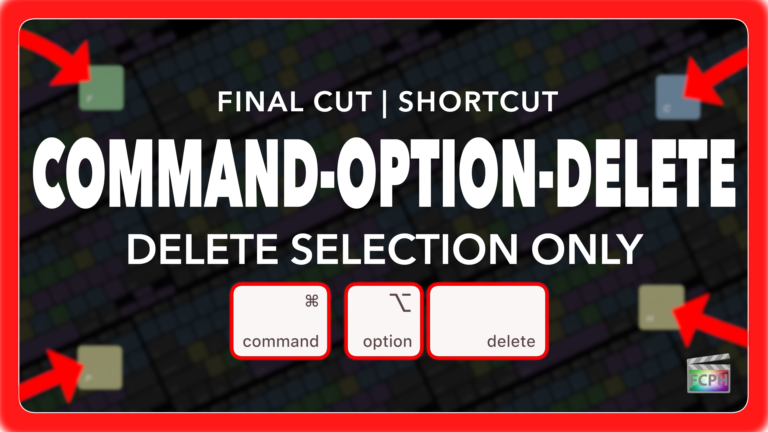
Final Cut Pro Shortcut | Command-Option-Delete | Delete Selection Only
If you’re an editor working in Final Cut Pro, you know how critical it is to maintain precise timing while cutting, trimming, and deleting clips. But…
-
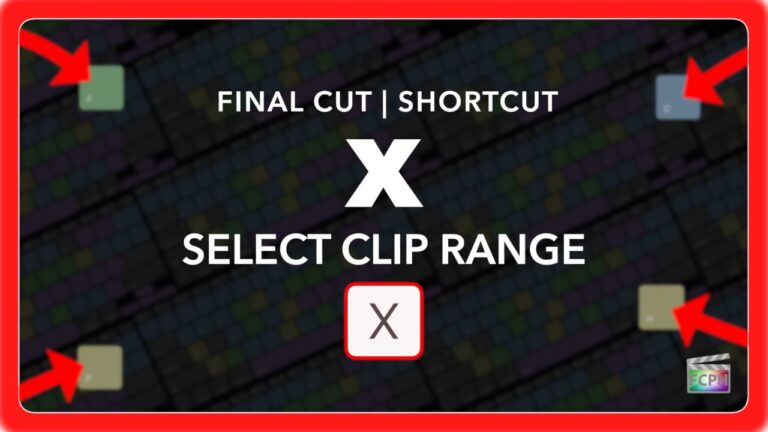
Final Cut Pro Shortcut | X | Select Clip Range
The X shortcut in Final Cut Pro is more useful than many editors realize. When your playhead or skimmer is positioned over a clip, pressing X sets a range…
-
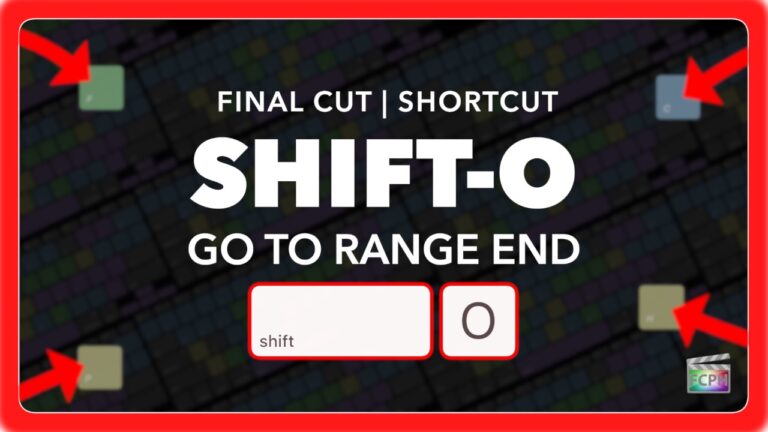
Final Cut Pro Shortcut | Shift-O | Jump to Range End
If you’ve ever felt lost navigating your timeline while marking ranges in Final Cut Pro, you’re not alone. Quickly moving between your In and Out points…