Launching Final Cut Pro for the First Time

If you have been following along, you are probably itching to open Final Cut Pro. In this lesson you will learn how to find and launch it, and what the messages and extra icons mean the first time it opens, so nothing surprises you.
Steps
- If you do not see Final Cut Pro in the Dock, go to the Finder, choose Go and then Applications, or press Shift-Command-A. A Finder window opens on the Applications folder.
- Locate Final Cut Pro and drag it onto the Dock. If you are going to be editing a lot, it is nice to have an easy shortcut.
- Click the Final Cut Pro icon once to open it.
- Watch the right side of the Dock. The first time you open Final Cut, it launches a ton of apps to get you started, and you are not the only one who sees this.
- Read the message that says Final Cut Pro would like access to your photos. Click OK. Final Cut has a button to see your photos without leaving the app, and there is really no reason to say Don't Allow.
- If you have other apps that work with Final Cut, you may see them too. I saw the FxFactory notifier, since FxFactory installs plug-ins and extras for Final Cut. It asked to update. I chose not to, checked the box not to check automatically, and clicked Update Later.
- Read the What's New list. When you move to a major new version, or on a first launch, you see the newer features that have been added.
- Click Complete Feature List to open the support document with greater detail on the major features and the little ones added in recent versions.
- Click Continue, and you are inside Final Cut Pro 10.
Tips
- Do not just close the What's New list. Even if you have used Final Cut for a while, it shows you new features, and it helps you grow after this course. The same information is on Apple's Final Cut Pro website.
- The Dock icons that speed by are normal. It happens with major updates and on the first launch.
- Apps that interact with Final Cut can launch alongside it, which is why FxFactory appeared for me.
- Next, we take a tour of the interface.
This video takes the steps to open Final Cut Pro for the first time
0:00 • Add Final Cut to the Dock
1:03 • Launch Final Cut
2:50 • What's New
Follow along with the same media used in this course. Go to EditStock.com and use coupon code FCPHELP www.editstock.com/discount/FCPHELP
Related tutorials
-

How to Use the Control-Delete Shortcut in Final Cut Pro: A Guide for Editors
If you’re an editor using Final Cut Pro , you know how important it is to stay organized while working with a large amount of footage. Sometimes, certain…
-
Editing A Rough Cut: Final Cut Pro Techniques for Clips, Transitions, Text, and Music
In this video tutorial, we delve into the process of building a rough cut using Final Cut Pro. We start by organizing our imported media and creating a…
-
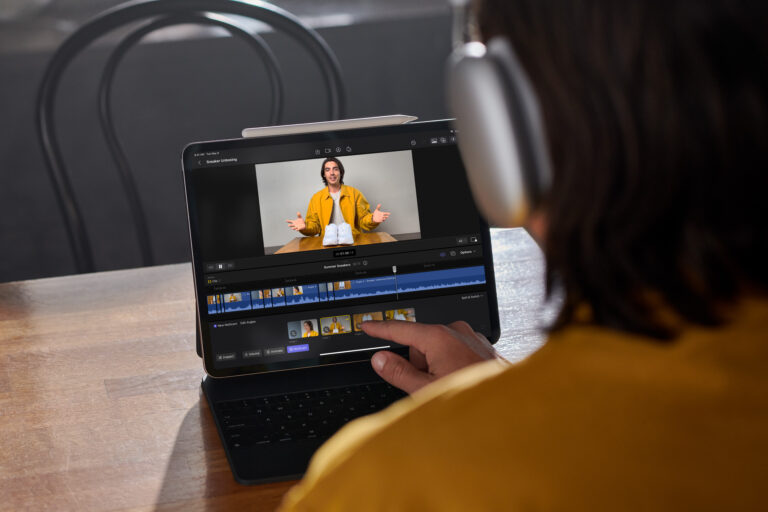
Final Cut Pro Comes to iPad: The Future of Mobile Video Editing
The news that Final Cut Pro is now available on the iPad is a big deal for content creators. With this application, users can