Making Split Edits

A split edit, also called a J cut or an L cut, separates the video and audio of a clip so they change at different times. In this lesson you will learn how to make split edits in Final Cut Pro by expanding clips, dragging the audio edges, and smoothing the result with fades.
Steps
- Understand the two types. In a J cut, the audio of the next clip is heard before you see the clip. In an L cut, the video ends but the audio continues.
- Select the clips and press Option-S to solo them. You do not need to hear the room tone or music while you make these edits.
- To make a J cut, double-click the audio portion of the second clip. The two components expand.
- Select the left edge of the audio and drag it to the left. You now hear the audio for that clip before you see the video.
- Play it back. In my clip, the director says action, so I drag the edge to the right past that bump in the waveform.
- For an L cut, double-click the audio of the first clip and drag its right edge. At the end of my clip I did not want to hear a line, so I dragged the edge to the left.
- Drag the audio fade handles to make the J and L cut smoother, so the two audio tracks mix together.
- Double-click each clip to close the audio tracks. The edits are still there in the background. Press Option-S to unsolo.
- Repeat at other edit points. Expand both clips so they overlap a little, and use the handles to fade in and fade out.
- Check the room tone. At one edit it was doubled up, so drag it closer and move the fade handles to smooth it out.
- Fix problems by looking at the waveform. In one spot the actor says all right twice, so I expanded the clips, dragged the edge to the right, and pressed Z to zoom in, then Shift-Z to zoom back out.
- Press N to turn snapping off for a very fine adjustment of a couple of frames, and press N again to turn it back on.
- To remove an unwanted laugh, hold Option and click the audio line to add keyframes, and dip the audio at that moment.
Tips
- It is good practice to do this at many edit points, even where you do not hear an issue, to smooth how clips transition into each other.
- Be careful when you trim a clip afterward. It can affect the split you made, so you may have to go back and readjust your edit points.
- Watch the picture as well as the waveform. In one clip the actor's mouth was still moving, and I trimmed a couple of frames.
- Split edits are very helpful for smoothing audio and video transitions, even with standard cuts.
Related tutorials
-
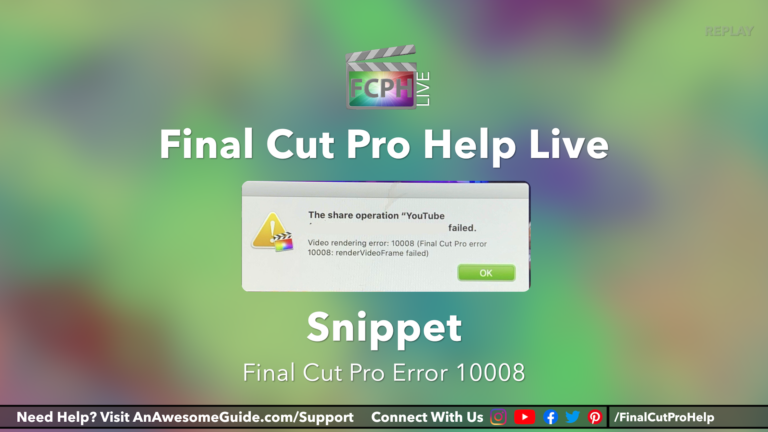
How to Diagnose and Resolve Problems with Sharing in Final Cut Pro Using the Blade, Split Half Search and Other Techniques
If you’ve ever experienced a video rendering error 10008 or similar message while using Final Cut Pro, you know how frustrating it can be. Fortunately…
-

Final Cut Pro Help Live (Replay) | Demo | Split Screen Template Update 1.3
Follow along with the same media. Go to EditStock.com and use coupon code FCPHELP www.editstock.com/discount/FCPHELP
-

Final Cut Pro | Effects | Split Screen
This Split Screen Effect is for Final Cut Pro* and makes displaying multiple clips on the screen at the same time easy. This video demos the…