Select a Computer

Before you can edit with Final Cut Pro, you need access to the app and a compatible computer. In this lesson you will learn how to choose between a portable and a desktop Mac, find the information you need on Apple's website, and walk through configuring a machine.
Steps
- Confirm the basics. Final Cut Pro 10 installs on computers that run macOS, the operating system Apple includes with every Mac. PCs with Windows or other operating systems do not meet the minimum system requirements.
- Go to Apple's website, even if you plan to buy somewhere else. It is a great place to start your research. Click the Mac tab at the top for the current design and an overview of the lineup.
- Pick portable or desktop. The MacBook, MacBook Air and MacBook Pro can all run Final Cut Pro 10. Ideally you want the most power you can afford, and for more power for less money, consider a desktop, since the iMac lineup is incredibly powerful for the price.
- Click the machine you want, such as the MacBook Pro. It is the most common machine used with Final Cut Pro. Scroll through the overview for the highlighted hardware, the models and the weight.
- Click the Tech Specs button at the top right. It gives you a very raw breakdown of what the machine includes, such as the display, the resolution and the ports.
- Choose the screen size, 13-inch or 15-inch. The 15-inch includes a more powerful processor and is a much better fit with Final Cut Pro, though the price is much larger.
- Pick a finish, either silver or space gray, then look at what the base machine includes. The one I selected has 256 gigabytes of storage and can go up to 4 terabytes with an SSD.
- Click Buy to open the page where you can configure the machine. Compare the processor options, such as a 2.2 gigahertz six-core, against the faster one on the right. The summary at the top updates as you customize.
- Compare the options side by side. Both of mine have four Thunderbolt 3 ports, but the graphics card is a little better on the machine on the right.
- If you do not have Final Cut yet, you can get it pre-installed. That gives you a code to add it to your account.
Tips
- Everyone's needs are different. A machine that works great for one person may not be the ideal fit for you.
- Keep an eye on the little numbers in the specs, because they can make a big difference with Final Cut.
- Choose carefully, since a lot of the hardware in a MacBook Pro is built in and cannot be upgraded later.
- Many people just connect an external hard drive for storage, and that works well for media.
Watch this video for tips about getting a compatible computer for editing video with Final Cut Pro.
0:00 • What you need to get started
1:48 • Configuring a portable (laptop)
9:45 • Configuring a desktop
17:50 • Comparing the portable to the desktop
21:40 • Where to go to get more information and buy
25:50 • Steps to take before buying (or selling) a Mac
Related tutorials
-

How to Use the Control-Delete Shortcut in Final Cut Pro: A Guide for Editors
If you’re an editor using Final Cut Pro , you know how important it is to stay organized while working with a large amount of footage. Sometimes, certain…
-
Editing A Rough Cut: Final Cut Pro Techniques for Clips, Transitions, Text, and Music
In this video tutorial, we delve into the process of building a rough cut using Final Cut Pro. We start by organizing our imported media and creating a…
-
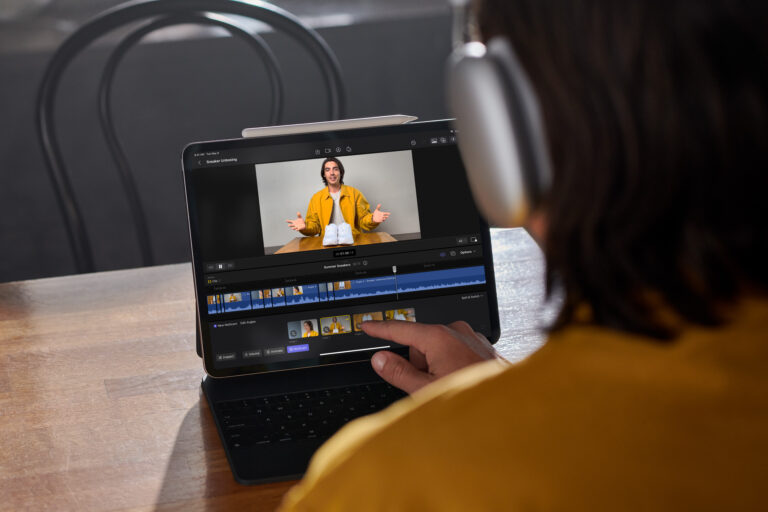
Final Cut Pro Comes to iPad: The Future of Mobile Video Editing
The news that Final Cut Pro is now available on the iPad is a big deal for content creators. With this application, users can