Sharing to YouTube
Besides making a master file, you can publish straight to YouTube from inside Final Cut Pro, with no export and no browser upload. In this lesson you will learn how to fill in the Info tab, sign in, choose resolution, compression, privacy and captions, and send your project off.
Steps
- Click the Share menu and choose YouTube. Facebook and Vimeo are also in the list.
- In the Info tab, type a title. This becomes the YouTube video title, so I might add Version 1 while it is being reviewed.
- Add a description, which anyone viewing the video on YouTube will see. You can also change the creator and the tags.
- Look at the overview at the bottom. Mine showed the video going out at 720p, which is not what I want for full quality.
- Click the Settings tab and click Sign In. Sign in to your YouTube account so Final Cut can create the file and upload it directly. Without signing in, you cannot publish from here.
- Choose the resolution. 4K is grayed out because this video is not 4K, so I choose 1080, and the bottom of the window changes to 1920 by 1080.
- Check the color space. Mine is the standard Rec. 709, not HDR.
- Choose the compression. The default is Faster Encode, but I change it to Better Quality, which does a multi-pass encode.
- Choose a privacy setting, and pick a category from the list that YouTube provides.
- Choose how to handle captions. You can include them in the upload so viewers can turn them on or off, or burn them in so they are always on.
- Click Next to share the project. You can follow progress in the Background Tasks window, just like other shares.
Tips
- Upload as Private first. Watch the video on YouTube, check the description and everything else, and then make it public.
- Unlisted is another option. People will not find the video through YouTube searches and need the link to see it.
- Send the highest resolution you can. YouTube lets viewers lower the quality themselves, so I rarely recommend a smaller size.
- Choose Faster Encode only when you are in a time crunch and need to get the video out as fast as you can.
Related tutorials
-
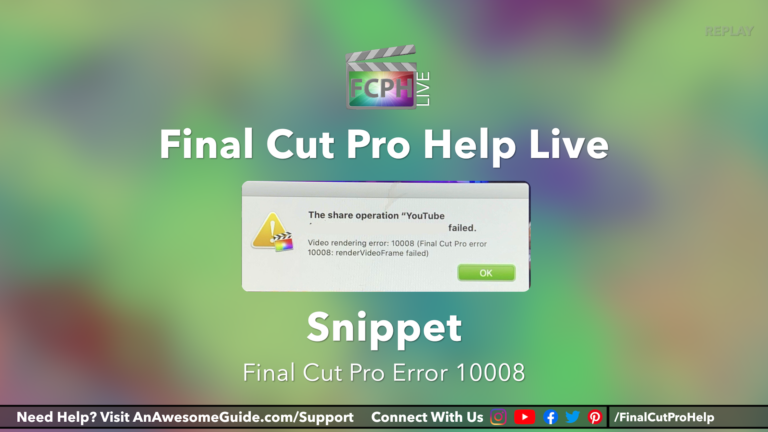
How to Diagnose and Resolve Problems with Sharing in Final Cut Pro Using the Blade, Split Half Search and Other Techniques
If you’ve ever experienced a video rendering error 10008 or similar message while using Final Cut Pro, you know how frustrating it can be. Fortunately…
-
Beginner’s Guide to Video Editing with Final Cut Pro: A Step-By-Step Video Tutorial for Editing Videos from Install to YouTube
Are you looking for a comprehensive guide to Final Cut Pro X? Look no further! This step-by-step video tutorial will help you get up and running with…
-

Final Cut Pro X | Sharing to Instagram
Remember, Instagram is compressing the video after you upload it to them. Their compression is great because it allows videos to load instantly when…