Using Search & Creating Smart Collections

All the time you spend marking favorites, adding keywords and filling in metadata pays off when you search. In this lesson you will learn how to search the Final Cut Pro browser, use the filter window to make smarter searches, and save searches as event smart collections and library smart collections.
Steps
- Click the search icon at the top right of the browser to show the search field. Type something that is in your clip names, such as 4-65, and only the items that include it stay visible.
- That search is just plain text. For a smarter one, click the button on the right side of the search field to open the filter window.
- Click the plus button to add other criteria. Choose Keywords, and click the button to uncheck all of them. Then check only the keyword you want, such as Scene 4.
- Check the count at the bottom. Mine showed one of 22 clips selected for Scene 4. If I clear the filter, all 516 clips are showing.
- Click New Smart Collection. It appears in the left sidebar, so name it, such as Scene 3 and 4, and click it to see those items without searching again.
- Look at the Smart Collections folder above the event. These are library smart collections, which search your entire library, not just one event. The defaults include All Video, Audio Only, Favorites, Projects and Stills. In this library that meant 470 video clips, 43 audio clips and 3 still images.
- To make your own, choose File, then New, then Library Smart Collection. Double-click it, click the plus button, and add criteria.
- I added a text rule where the text includes Scene 4, and a rating rule for Favorites. Now I can find the Scene 4 favorites from every event.
Tips
- Smart collections do not duplicate any of your media, so you will not use up storage. They are just saved searches.
- A filter search is worth using even when the sidebar could do the same thing, because you can save it.
- Library smart collections are helpful when a library holds several events, such as several short films.
- You can modify or delete collections at any time. The point is to set up your library so you can find your content.
Related tutorials
-
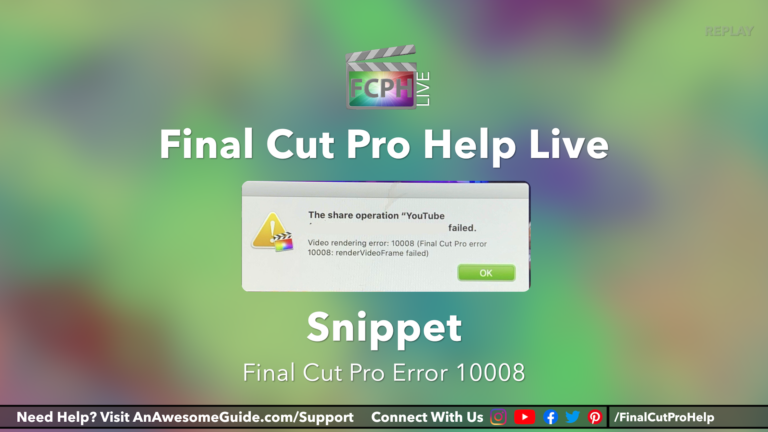
How to Diagnose and Resolve Problems with Sharing in Final Cut Pro Using the Blade, Split Half Search and Other Techniques
If you’ve ever experienced a video rendering error 10008 or similar message while using Final Cut Pro, you know how frustrating it can be. Fortunately…
-

Creating Text That Slides Onto The Screen | Final Cut Pro Help Live
Learn how to add keyframes to animate text so that is slides onto the screen. Click this link to watch the full replay of this episode of Final Cut Pro…
-

Final Cut Pro Help Live (Replay) | Sliding Text From Off Screen, Creating a Template Library & More
Watch this replay of Final Cut Pro Help Live or click a link below to jump to a specific topic: